Powerful Battery Monitoring Features
Everything you need to track, log, and optimize your laptop battery performance in one simple interface.
Detailed Battery Info
View essential data including battery name, manufacturer, serial number, and chemistry (Li-ion, NiMH, etc) instantly.
Health & Wear Level
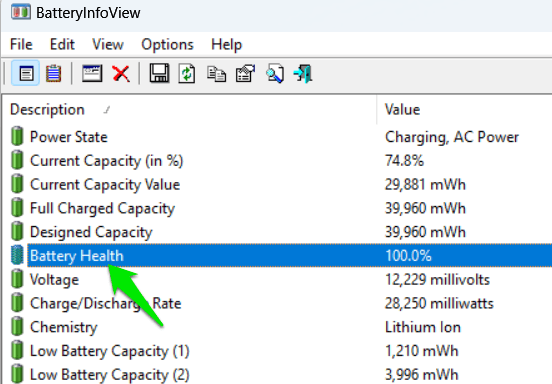
Calculate battery wear level automatically by comparing designed capacity versus full charge capacity.
Real-time Event Logging
Track power state changes and capacity drops every 30 seconds to analyze your laptop’s energy consumption.
Charge/Discharge Rates
Monitor precise voltage and milliwatt rates to see exactly how much power your system is drawing right now.
Fully Portable
No installation or administrative privileges required. Run it directly from a USB drive on any Windows machine.
Data Export
Save your battery reports and logs into various formats including TXT, CSV, HTML, or XML for further analysis.
Technical Specifications
| Latest Version | v1.27 (March 2026) |
| License | Freeware |
| File Size | ~200 KB |
| Executable Name | BatteryInfoView.exe |
| Language | English (Multi-lang support) |
| Developer | Nir Sofer (NirSoft) |
System Compatibility
BatteryInfoView is designed to be highly compatible with almost all Windows-based laptops and netbooks. It runs as a standalone utility without requiring any complex frameworks.
How to Use BatteryInfoView
Follow these 4 simple steps to start monitoring your laptop battery health.
Download
Get the latest ZIP package from our dedicated download page.
Extract
Unzip the files to any folder or a USB drive. No installation is required.
Run Tool
Launch BatteryInfoView.exe. The main dashboard will appear instantly.
Analyze
Toggle between Battery Info (F7) and Battery Log (F8) to see results.
Pro Tip: Exporting Data
Need to share your battery report? Simply select the items you want, then go to File > Save Selected Items or press Ctrl+S to export data as an HTML or CSV report.
Frequently Asked Questions
Find answers to the most common questions about BatteryInfoView.
Is BatteryInfoView really free to use?
Yes, BatteryInfoView is 100% freeware. You can use it for personal or commercial purposes without any cost, as long as you follow the distribution terms of the developer.
Why is the “Manufacture Date” or “Serial Number” blank?
This information is only displayed if your laptop’s battery hardware provides it to the Windows operating system. Some budget or third-party batteries do not include this data in their firmware.
How is “Battery Health” calculated?
BatteryInfoView calculates health by comparing the Full Charged Capacity with the Designed Capacity. A new battery should be close to 100%, and this value will decrease over time as the battery wears out.
Does it support Windows 11?
Absolutely. The latest version v1.27 is fully compatible with both 32-bit and 64-bit versions of Windows 11, Windows 10, and older legacy systems.
Does this tool need to be installed?
No. BatteryInfoView is a portable utility. You just need to download the ZIP file, extract it, and run the executable file directly.
Understanding Your Battery Data
BatteryInfoView provides professional-grade diagnostics. Here is what those critical numbers actually mean for your laptop’s lifespan.
Designed vs. Full Charge Capacity
Designed Capacity is the maximum energy the battery could hold when it left the factory. Full Charge Capacity is what it can hold now. The gap between these two numbers represents the natural chemical aging of your cells.
Battery Wear Level (Health)
This is the most critical SEO metric. A 10% wear level means your battery has lost 10% of its original ability to store power. BatteryInfoView helps you decide if it’s time for a replacement before your laptop starts shutting down unexpectedly.
Discharge Rate (mW)
Measured in milliwatts, this shows how much power your laptop is consuming right now. By monitoring this in the Battery Log, you can identify background apps that are draining your battery excessively.
Charge Cycles
A charge cycle occurs when you use 100% of your battery’s capacity. Most modern Li-ion batteries are rated for 300-500 full cycles. Use BatteryInfoView to track this count and predict your battery’s end-of-life.
Why BatteryInfoView?
How it compares to the standard Windows Battery Report.
| Features | Windows Built-in Report | BatteryInfoView v1.27 |
|---|---|---|
| Real-time Monitoring | ❌ Static HTML Only | ✅ Live Updates |
| Automatic Event Logging | ❌ Limited History | ✅ Every 30 Seconds |
| Ease of Use | Requires Command Line | ✅ 1-Click Graphical UI |
| Export Options | HTML Only | ✅ CSV, XML, TXT, HTML |
| System Impact | Low | ✅ Zero (Portable) |
| Wear Level Calculation | Manual Calculation | ✅ Instant Health % |
When Should You Use BatteryInfoView?
Beyond simple monitoring, BatteryInfoView is a powerful diagnostic tool for these common hardware situations.
Buying a Used Laptop?
Never buy a second-hand MacBook or Windows laptop without checking the battery first. Simply run BatteryInfoView from a USB drive to verify the Full Charge Capacity and Cycle Count. If the health is below 80%, you can use this data to negotiate a better price.
Sudden Shutdown Fix
Does your laptop die at 20% or 30%? This usually indicates a calibration issue or a dead cell. Use the Battery Log (F8) to monitor the voltage drop. If the voltage plunges rapidly before reaching 0%, BatteryInfoView helps confirm that your hardware needs replacement.
Identifying Power Hogs
High Discharge Rate (mW) means your CPU or a background app is working too hard. By observing this value while closing different apps, you can identify which browser or software is the real “battery killer” on your system.
⚠️ Common Issue: Battery Not Detected?
If BatteryInfoView shows no information, try to:
1. Re-insert your laptop’s power adapter.
2. Check “Device Manager” -> “Batteries” to ensure drivers are active.
3. Some modern gaming laptops use proprietary controllers; ensure you are running the tool with administrative rights if data is missing.
How to Extend Your Laptop’s Battery Life
Using BatteryInfoView to monitor health is the first step. Follow these expert tips to keep your cells healthy for years.
Avoid Extreme Heat
Heat is the #1 enemy of Lithium-ion batteries. Use BatteryInfoView to watch your discharge rates during heavy tasks. If the rate is consistently high, ensure your laptop’s cooling vents are clear to prevent permanent chemical degradation.
The 20-80% Rule
Deep discharging (letting it hit 0%) stresses the battery. For maximum longevity, try to keep your charge level between 20% and 80%. You can use the Real-time Log to set your own mental alerts for when to plug in.
Unplug Once Charged
While modern laptops have overcharge protection, keeping a battery at 100% and high voltage for weeks can accelerate wear. If you mostly use your laptop as a desktop, consider a “Battery Threshold” setting if your manufacturer provides one.
Why Battery Health Monitoring Matters
Most users ignore their laptop batteries until they stop holding a charge entirely. By proactively using a tool like BatteryInfoView, you can spot the early signs of battery swelling or voltage instability. Regular monitoring allows you to adjust your power usage patterns, potentially saving hundreds of dollars in repair costs and ensuring your device remains truly portable when you need it most.
How BatteryInfoView Accesses Your Hardware
BatteryInfoView isn’t just guessing your battery status. It communicates directly with the Advanced Configuration and Power Interface (ACPI) and retrieves data via the System Management Bus (SMBus).
Supported Chemistry Types
The tool can identify various cell chemistries including Lithium-ion (Li-ion), Lithium Polymer (Li-Poly), Nickel-Cadmium (NiCd), and Nickel-Metal Hydride (NiMH).
Smart Battery Data (SBD)
By reading the Smart Battery Data set, it provides precision voltage readings per cell (if supported by firmware) and accurate temperature monitoring.
Data Precision Comparison
* BatteryInfoView decodes raw hexadecimal data from the battery controller into human-readable milliwatts and millivolts, offering a resolution that Windows Task Manager cannot provide.
Trusted by Thousands of Users
See why professionals and PC enthusiasts rely on BatteryInfoView.
“I used this to check a used ThinkPad I bought on eBay. It instantly showed me the battery only had 120 cycles. Definitely helped me feel confident in my purchase!”
“The real-time log is the best feature. I discovered a background app was draining 5000mW extra power. Fixed the app, and my battery life doubled.”
“Simple, no bloat, and doesn’t need installation. This is how all Windows utilities should be. v1.27 works perfectly on my new Windows 11 laptop.”
Have you tried BatteryInfoView? Share your feedback with us!
Ready to Take Control of Your Battery?
Join thousands of users who monitor their laptop’s health with BatteryInfoView v1.27. Clean, safe, and portable — no strings attached.